
Email Signature: How to Create and Set Up One That Actually Works

A few years back I sent something like forty pitch emails in one week. Guest post ideas, mostly, to marketing blogs. Every single one ended with “Thanks, Adam.” One editor actually wrote back. Her whole reply? “Sorry, who are you with?”
Fair. I hadn’t said.
I sorted out my email signature that same afternoon. Nothing fancy. Name, my site, one link. Did my replies suddenly double? No. But nobody asked me that question again, and I noticed a few people had poked around my site before writing back, which felt like a small win.
So if yours is blank, or still says “Sent from my iPhone” (no judgment, mine did for ages), stick around. I’ll go through what to put in it, how to set up email signature blocks in Gmail and Outlook, the phone versions too, and where to grab a free email signature template if designing one sounds like a chore.
Table of Contents
ToggleWhat Is an Email Signature?
It’s those few lines at the bottom of an email. Sometimes there’s a logo. Your email app can stick it on automatically, or you add it yourself when you want it. Google’s Gmail Help page keeps it simple: contact details, or even a favorite quote, tacked onto the end of your messages.
People like to call it a digital business card. Close enough, I guess. Except a paper card usually ends up in a drawer or a business card holder and never comes out again. Your signature shows up in every reply. Every forward. Every thread your boss forwards to someone in another department without asking you.
Why a Professional Email Signature Matters
Quick test. Think about the last cold email you got from a stranger. What did you do first?
I’d bet you scrolled down to see who sent it. And if there was nothing there, you probably trusted it a bit less. That’s really the main reason to have one. It answers “who is this person?” before anyone has to ask.
Then there’s the boring-but-real stuff. A client wants to ring you, and your number is right there instead of buried in some thread from March. Your team’s emails all look alike, which matters more than you’d think once you’ve seen five coworkers using five fonts (one of them was Comic Sans, I’m not kidding).
And it’s free advertising, kind of. Whatever link you put down there gets seen by every person you write to. If you’re doing any B2B sales and marketing, this one’s bigger than it looks. Prospects check your signature right after reading your pitch. They’re deciding whether you’re real.
What to Include in Your Email Signature
I once got an email where the signature was longer than the message. Three phone numbers. A Steve Jobs quote. A banner for a webinar that had happened, I think, six months earlier. Don’t be that person.
The Must-Haves
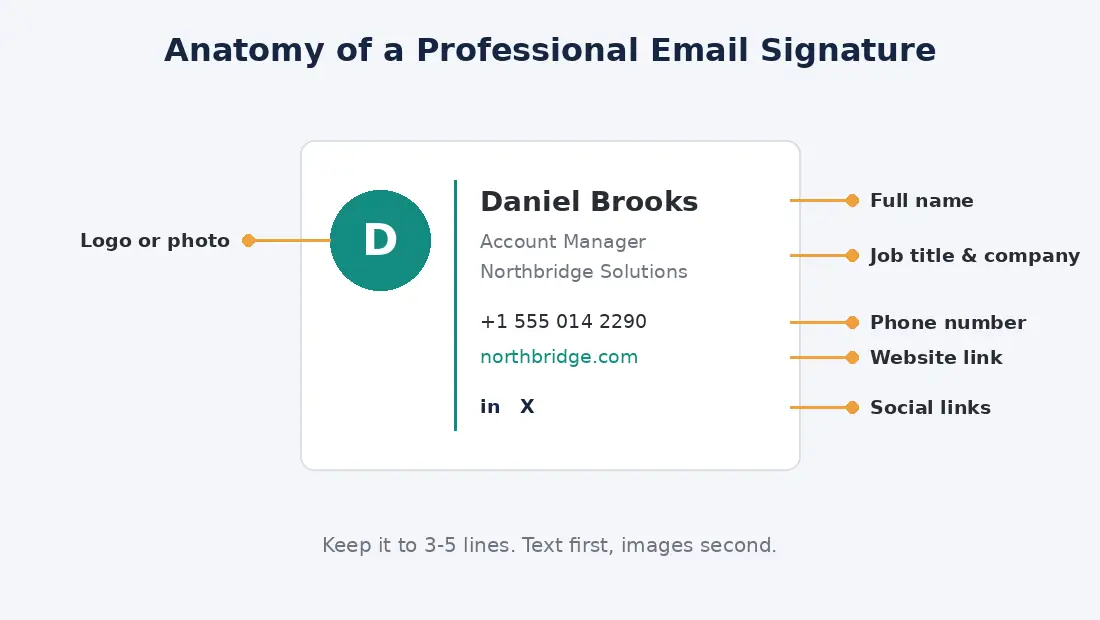
For a professional email signature, start with your full name, your job title and company, one phone number, and your website. That’s four lines. Plenty of people never need more, and honestly I’m one of them most days.
Nice-to-Haves
Want to add a bit? A small logo or headshot helps people recognize you in a crowded inbox. Social links are fine, but only ones you actually update (an X account you abandoned in 2021 doesn’t help). Sales folks often throw in something like “Book a 15-minute call” linked to their calendar, and it works. If you’re in law, finance, or healthcare, your company might make you add a legal disclaimer. Not much choice there.
What to Leave Out
Quotes. Bright colors. Four different fonts. Your full mailing address too, unless people really do post you things. And pick one phone number. Landline, mobile, and fax all together is a lot.
How to Set Up Email Signature in Gmail
How to add signature in Gmail is one of those things people google constantly, and it’s honestly not hard once you find the right menu. Free Gmail and Google Workspace work the same way here.
How to Add a Signature in Gmail on a Computer
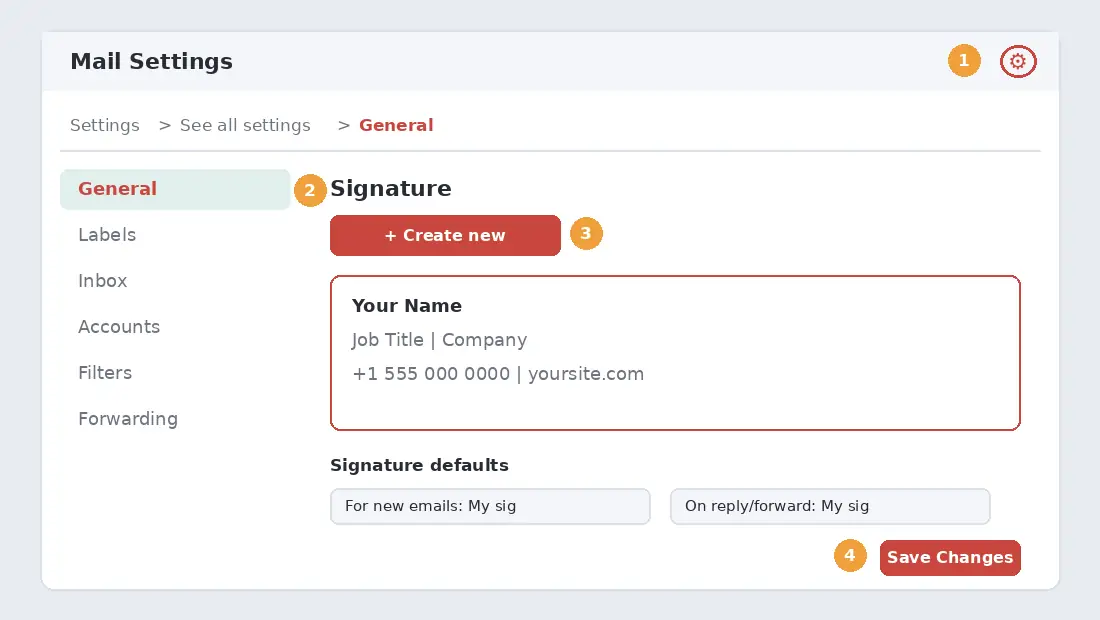
- Open Gmail in a browser.
- Up in the top right there’s a little gear. Click it, then hit See all settings.
- You’re on the General tab already. Scroll. Keep scrolling. Signature is about halfway down.
- Hit Create new, give it any name you like (only you see it), then Create.
- Now type or paste your signature in the box. There’s a small toolbar for fonts, links, and images.
- Look for Signature defaults right below. Tell Gmail if you want it on new emails, replies, or both.
- Scroll all the way to the bottom and click Save Changes. I’ve skipped this more than once and then wondered why nothing worked.
Gmail caps you at 10,000 characters, and images count toward it. So if you get an error when saving, nine times out of ten it’s a big image. Make it smaller and try again.
How to Create a Signature in Gmail on Your Phone
Bit of a surprise for most people: the Gmail app has its own separate signature, and it’s plain text. No logo. No colors.
On Android, tap the three lines in the corner, go to Settings, pick your account, and tap Mobile Signature. Type, tap OK, done. On an iPhone you go menu, Settings, then Signature settings. Flip on Mobile Signature and type it in.
I keep mine to name, title, one link. It’s a phone. Nobody’s reading a novel down there.
A Few Gmail Signature Tips
Lots of folks looking up how to add signature to Gmail stop as soon as it saves. Fair enough. But two settings are worth a look. You can keep a few signatures and switch while writing, using the tiny pen icon at the bottom of the compose box. And if you send from more than one address with “Send mail as,” each address can get its own signature. There’s a drop-down above the signature box for it.
How to Add a Signature in Outlook
Learning how to add a signature in Outlook is a little messier, mainly because Microsoft has a bunch of versions floating around at once. There’s the new Outlook for Windows, Outlook on the web and Outlook.com, the old classic desktop app, and the Mac one. The menus don’t quite match. If something below doesn’t line up with your screen, Microsoft’s support guide has a tab for each version.
How to Add Signature in Outlook (New Outlook and Web)
This is probably what you’ve got. How to add email signature in Outlook on the web is exactly the same as the new Windows app, so one set of steps covers both.
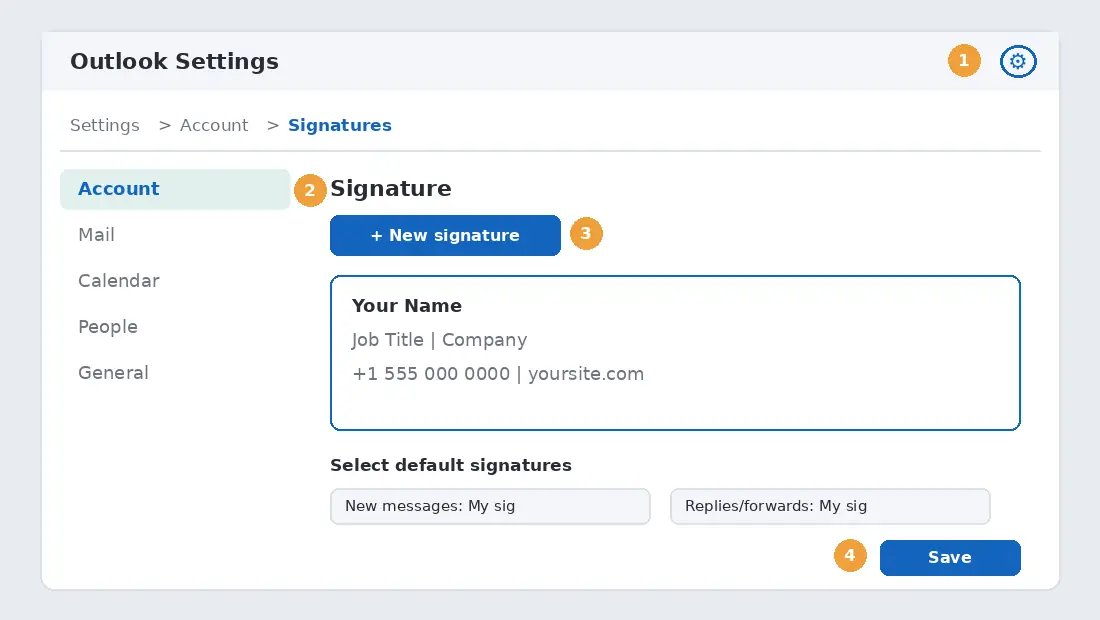
- Gear icon, top right. That opens Settings.
- Go to Account, then Signatures.
- Got more than one email account in there? Pick the right one first.
- Click New signature and name it something.
- Type your signature. Format it however.
- Two drop-downs below: one for new messages, one for replies and forwards. Set both.
- Save. Don’t forget it.
How to Create Email Signature in Outlook Classic
Loads of offices still use the classic Windows app. Here it lives under Options, which is a bit hidden.
- File, then Options, then Mail.
- Click Signatures.
- New, type a name, OK.
- Write it in the Edit signature box.
- Under Choose default signature, set it for new messages and replies.
- Hit OK.
Something that got me the first time. If an email was already open while you did all this, classic Outlook won’t add the signature to it. Even if it’s set as default. You either insert it by hand from the Signature button on the Message tab or open a new email. Annoying, but now you know.
Outlook Signature Setup on Mac and Mobile
Mac: Outlook, Settings, Signatures, then the plus sign. Phone app: Settings, tap Signature, type. Same deal as Gmail on mobile, it’s basic, so short is better. That’s pretty much how to add signature in Outlook on every device you’re likely to touch.
Gmail vs. Outlook: Quick Comparison
Use both? This might save you some clicking around.
Feature | Gmail | Outlook |
Where to find it | Settings > See all settings > Signature | Settings > Account > Signatures |
Multiple signatures | Yes | Yes |
Different default for replies | Yes | Yes |
Mobile signature | Separate, plain text | Separate, plain text |
Image support | Yes (counts toward 10,000 characters) | Yes |
How to Make Your Signature Look Good Everywhere
Nobody tells you this part. An email signature that looks lovely in your inbox can look terrible in somebody else’s. A client once told me my logo showed up on her phone as this giant blurry square. Turns out I’d uploaded a 1,500-pixel image and Outlook mobile just… didn’t shrink it.
So. Use boring fonts. Arial, Helvetica, Georgia, Verdana. Fancy ones get swapped out on the other end anyway. Keep the logo somewhere around 150 to 200 pixels wide, saved as a compressed PNG or JPG. One brand color and a dark gray for text is enough.
Then test. Email yourself from Gmail to an Outlook address, and the other way, and open both on your phone. Most guides on how to set up email signature blocks skip this, but it takes two minutes. Check dark mode while you’re there, because a black logo on a see-through background just disappears. Happens all the time.
Using an Email Signature Generator
Don’t want to mess with formatting? Fair. An email signature generator will knock one out in about five minutes.
I mostly use the HubSpot Email Signature Generator. Free, no sign-up, and what it spits out works in Gmail, Outlook, and Apple Mail. Pick a layout, fill in your stuff, choose colors, copy, paste into your settings.
Two things bugged me about this email signature generator, though. It sticks a little “Created with HubSpot” badge on by default. Turn that off before copying. And you can’t upload a logo straight into it. It wants a link to the image, so you’ll need it hosted somewhere first. Your website’s media library is fine.
Already using HubSpot CRM at work? You can paste the same signature into your HubSpot profile so it shows on emails you send from the CRM. You’ll have to be logged in, obviously. If you haven’t set that up yet, I wrote a walkthrough on setting up your HubSpot login and account.
Free vs. Paid Options
Just you? A free email signature tool is all you need, really. Paid ones make sense with a team, because an admin can control everyone’s signature from one spot. Company changes its phone number, you update it once, and fifty inboxes get it. Beats chasing fifty people on Slack. It’s a tiny bit of business process automation, sure, but it saves a lot of nagging.
Email Signature Examples You Can Copy
Here are a few email signature examples for different kinds of work. Use any of them as an email signature template. Swap your details in, paste, done.
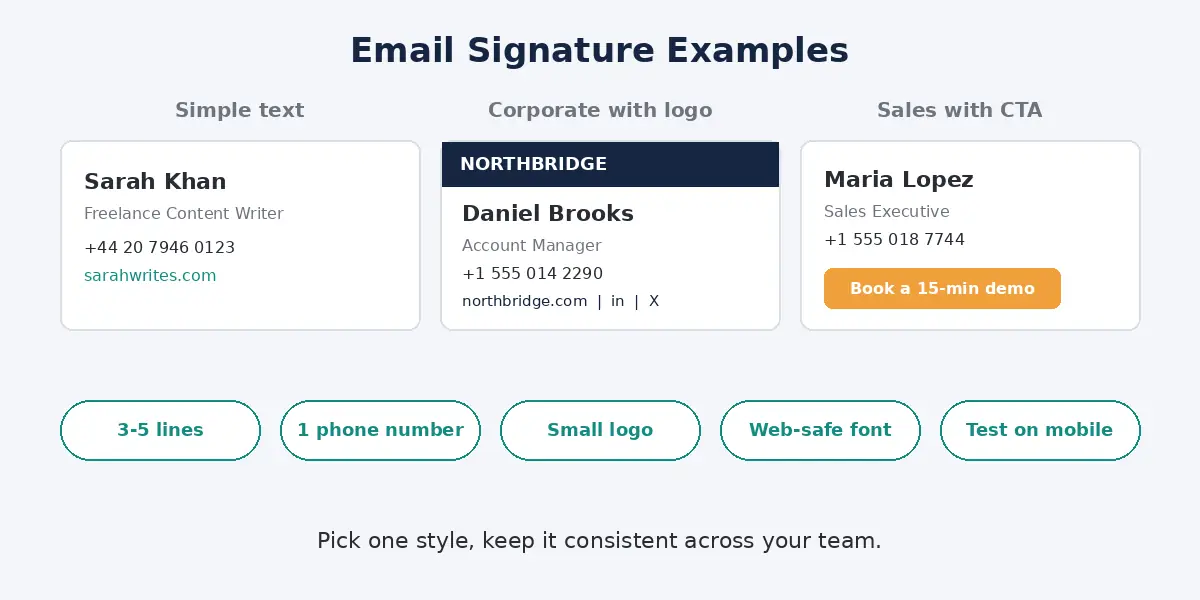
Simple Text Signature (Freelancers and Bloggers)
Sarah Khan
Freelance Content Writer
+44 20 7946 0123 | sarahwrites.com
Corporate Signature With a Logo
[Company logo]
Daniel Brooks
Account Manager, Northbridge Solutions
+1 555 014 2290 | northbridge.com
LinkedIn | X
Sales Signature With a Call to Action
Maria Lopez
Sales Executive, Brightline Software
+1 555 018 7744
Book a 15-minute demo: brightline.com/demo
Student or Job Seeker Signature
Ali Raza
MSc Computer Science Student
linkedin.com/in/aliraza | aliraza.dev
See how no email signature template here runs past five lines? Not an accident.
Common Mistakes to Avoid
The big one. People turn the whole email signature into one image. Looks slick on their screen. But loads of email apps block images until you click “show images,” so the reader just gets a blank box. And you can’t click a phone number that’s inside a picture. If you do use images, add alt text. The W3C’s guide on images explains how it helps screen reader users, plus it shows up when images don’t load.
File size, next. I’ve seen a 900 KB logo. That thing rides along on every email you send, slows stuff down, and can even push you toward spam folders.
Then there’s never checking on a phone. Or leaving an old job title in there for months. Changed numbers? Fix it today.
Oh, and titles. “Senior Growth Synergy Lead” means nothing to anyone. What I said in my post on business jargon and professional communication goes for signatures too. Just say what you do.
Final Thoughts
Honestly, a professional email signature is about ten minutes of work, and then you never think about it again. It just sits there doing its job. Keep it short. Keep it current. Look at it on your phone once before you call it finished. Gmail, Outlook, a generator, doesn’t really matter which route you take. You just want people to know who you are without having to ask, like that editor had to ask me.
Frequently Asked Questions
What should a professional email signature include?
Your name, title, company, one phone number, and your website. Logo and a couple of social links if you want, but they’re extras.
How do I add a signature to Gmail on my phone?
Open the Gmail app, go to Settings, tap your account, then Mobile Signature. On iPhone it’s tucked under Signature settings instead. Just text though, no images.
Why isn’t my Outlook signature showing up?
Nine times out of ten it’s not set as default. Head back to Signatures and pick it for new messages and replies. On classic Outlook, if an email was already open when you made it, that one email won’t get it.
Is there a good free email signature generator?
HubSpot’s is the one I’d try first. Free, no account needed. Zoho has a simple one too.
Can I have more than one email signature?
Yep. Gmail and Outlook both let you save a few and choose while writing. I keep a full one for new emails and a two-liner for replies.
Should I put my photo in my email signature?
Depends what you do. Sales or client work, a small headshot can make you seem more approachable. Just keep the file tiny.
How long should an email signature be?
Three to five lines. Longer than that and people stop reading.

About Adam
Adam is a blogger with over 10 years of experience writing about business growth, SaaS, digital marketing and finance. At OutreachHunt, he shares practical, research-backed guides for founders, marketers and working professionals.
View all posts by Adam